Registering players (SCR Workflow)
In this guide, we will cover registering players within COMET’s new Standard Club Registration workflow.
Registering a player to your club in COMET
To maintain player history and prevent duplicates of the same player, we start by searching for the player.
Finding Players in My Club
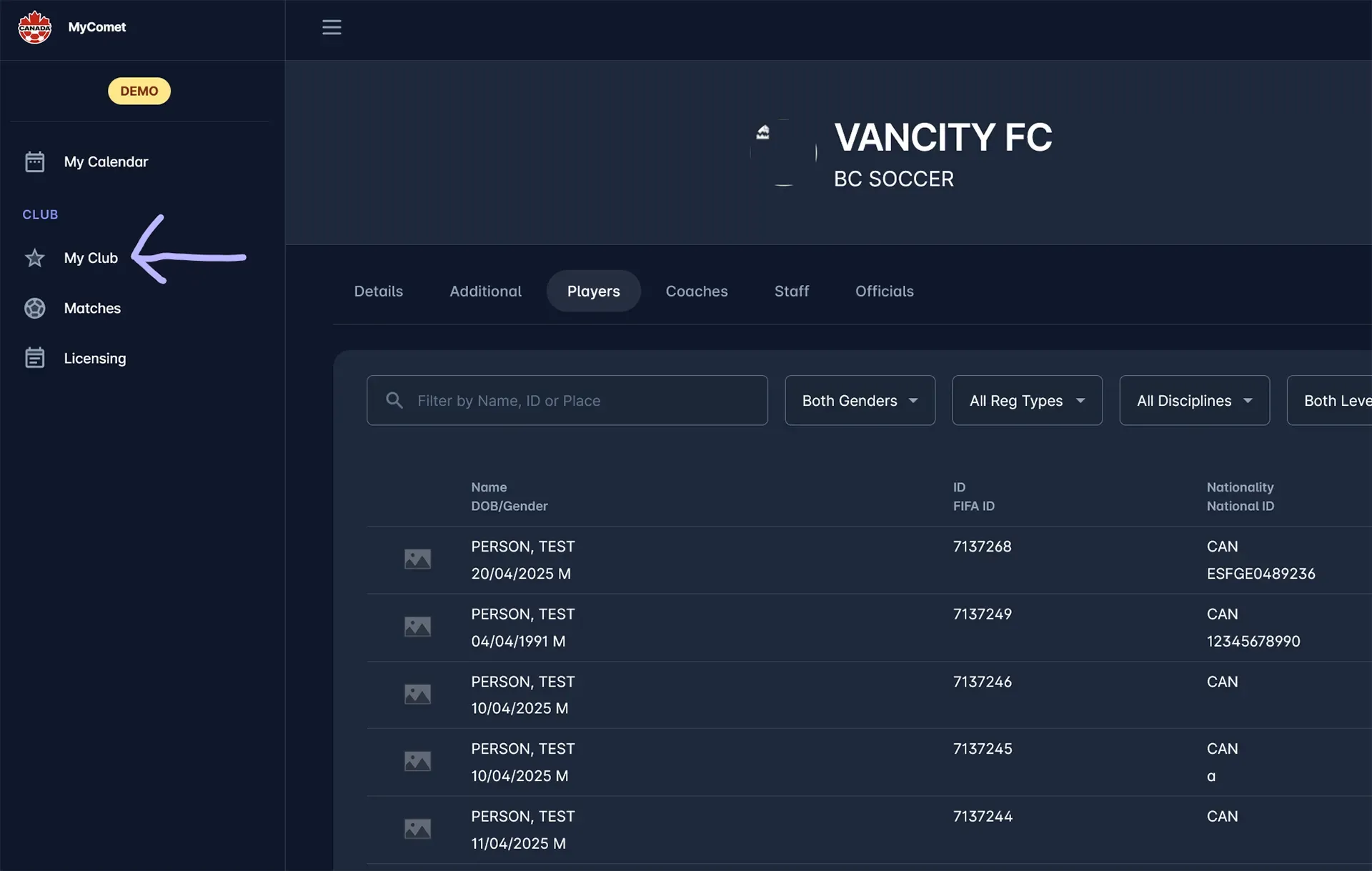
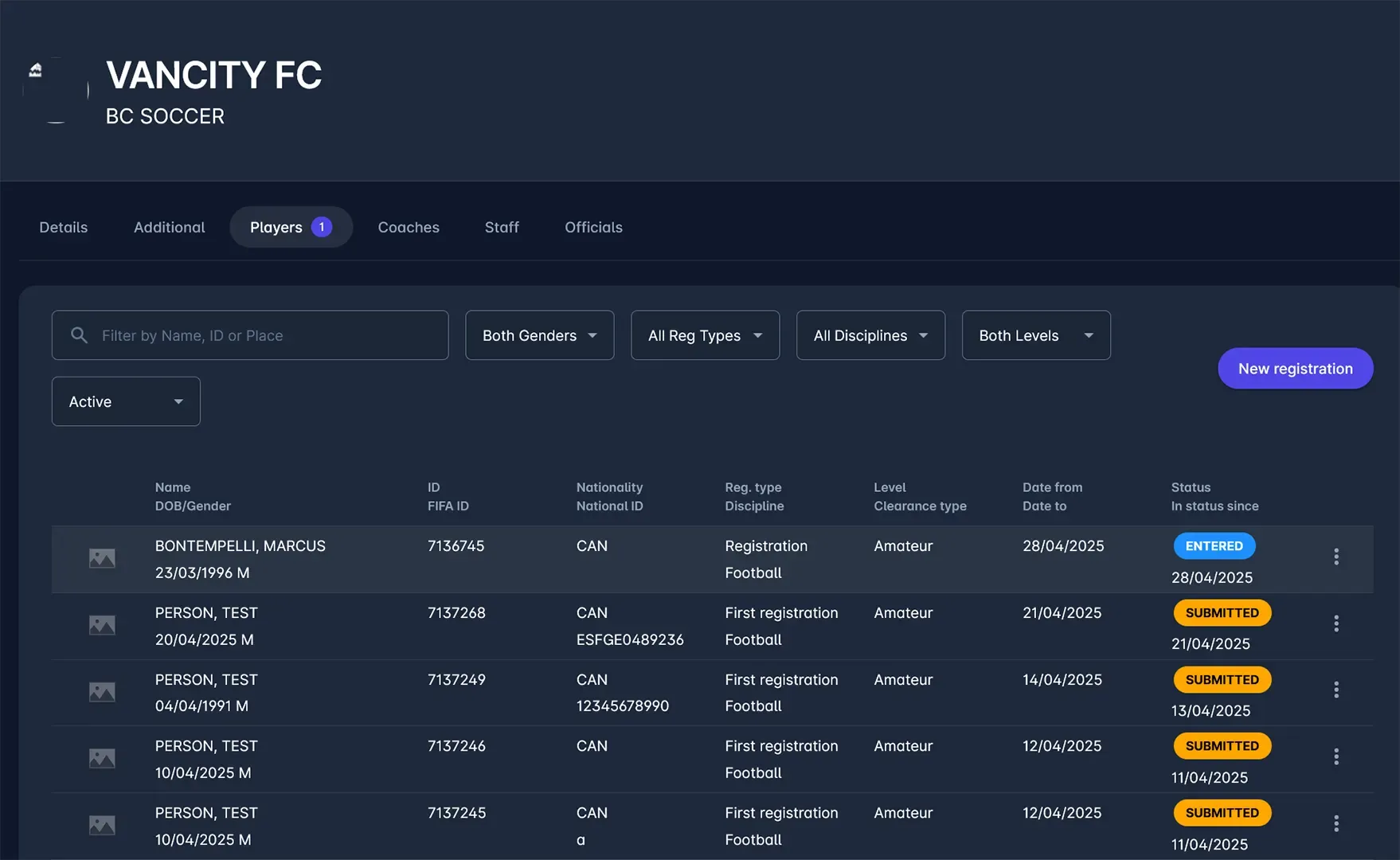
Click on My Club in the left sidebar to go to your club page, and select the Players to see your list of players.
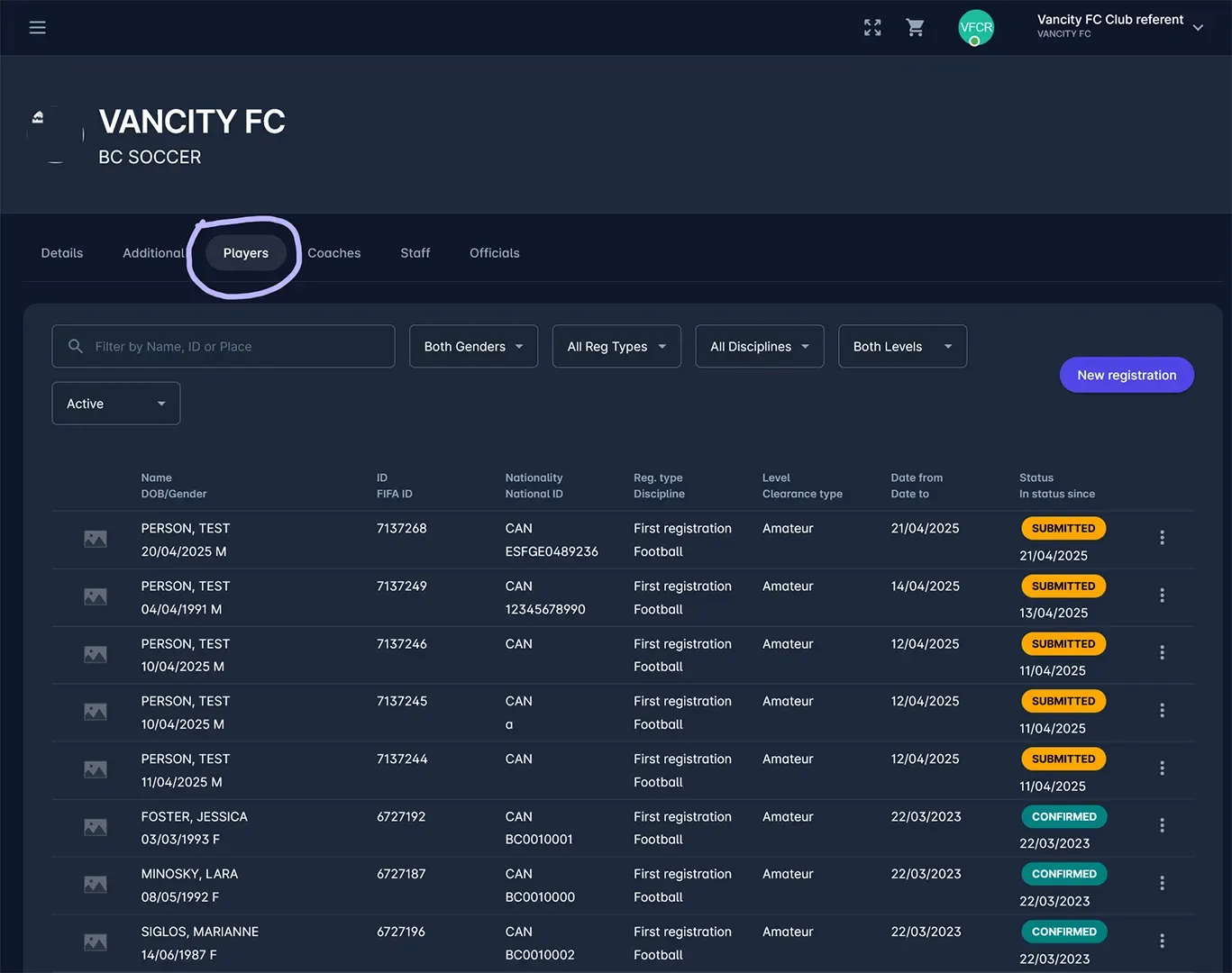
The right-most column contains the status of your registrations.
- ENTERED means the person is still being reviewed by your club (as if it is a draft). You would have the ability to edit details of the person or registration.
- SUBMITTED means the person’s details and registrations have been finalized by your club, and you have submitted the registration to the approval process. Submitting your registrations is necessary for your league’s registrar and administrators to be notified.
- CONFIRMED means the person has been approved by your league’s registrar and administrator, and they should be available for lineup selection in matches.
This will be the best way to monitor the progress of your registrations should you wish to contact your league’s registrar and administrator for an update.
You can click on any of the players in this list to get more of their person or registration details if necessary. The three dots on the right will also give you the opportunity to submit or cancel any registrations.
Starting a new player registration
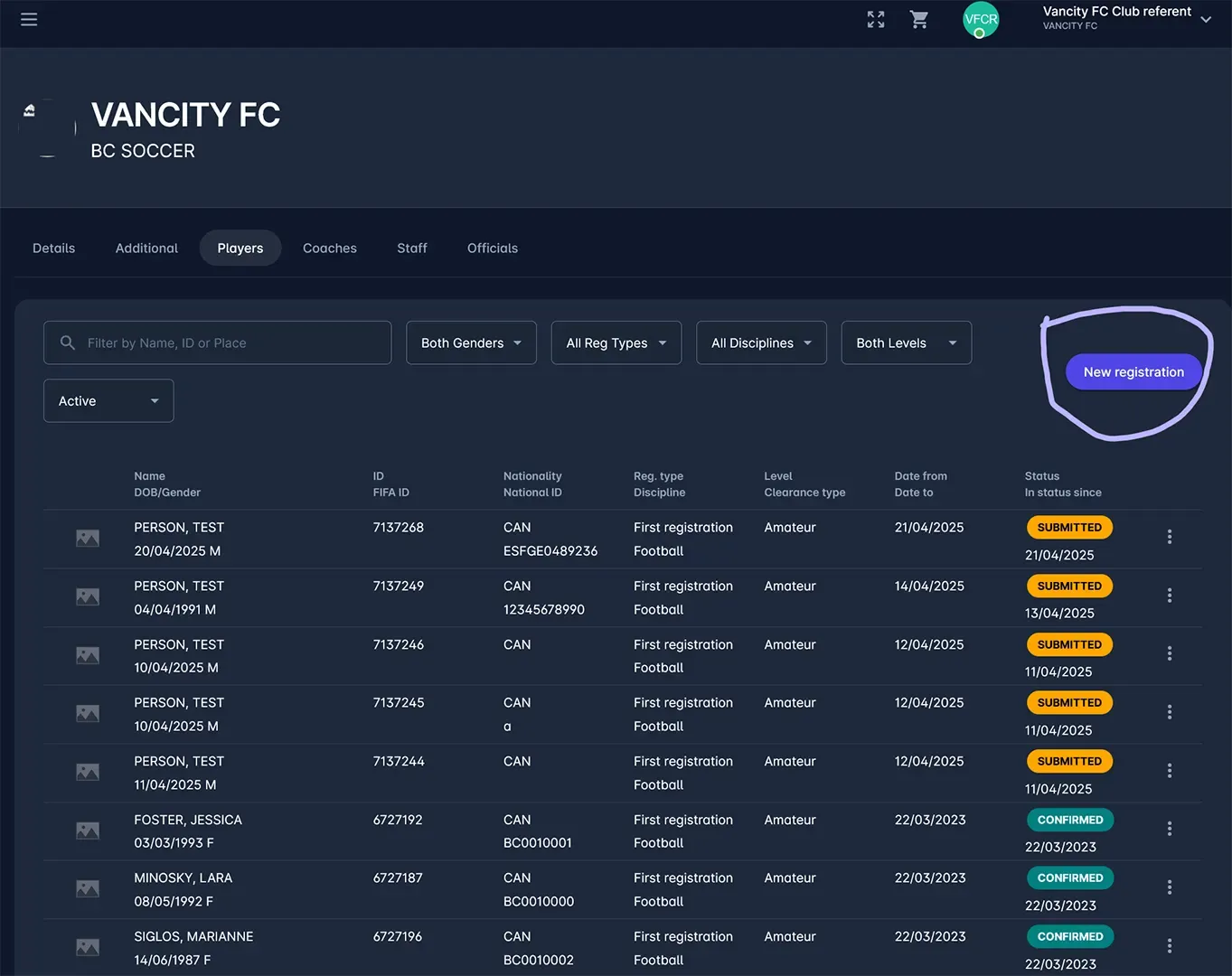
Click on the New Registration button on the right side to start a new player registration for someone who currently isn’t Entered, Submitted, or Confirmed.
The first step of the registration process is to search if a player is potentially already in COMET. Fill out the form with the details needed to search (for our purposes, name and date of birth should be enough). Click on the Search button to look for any matching players.
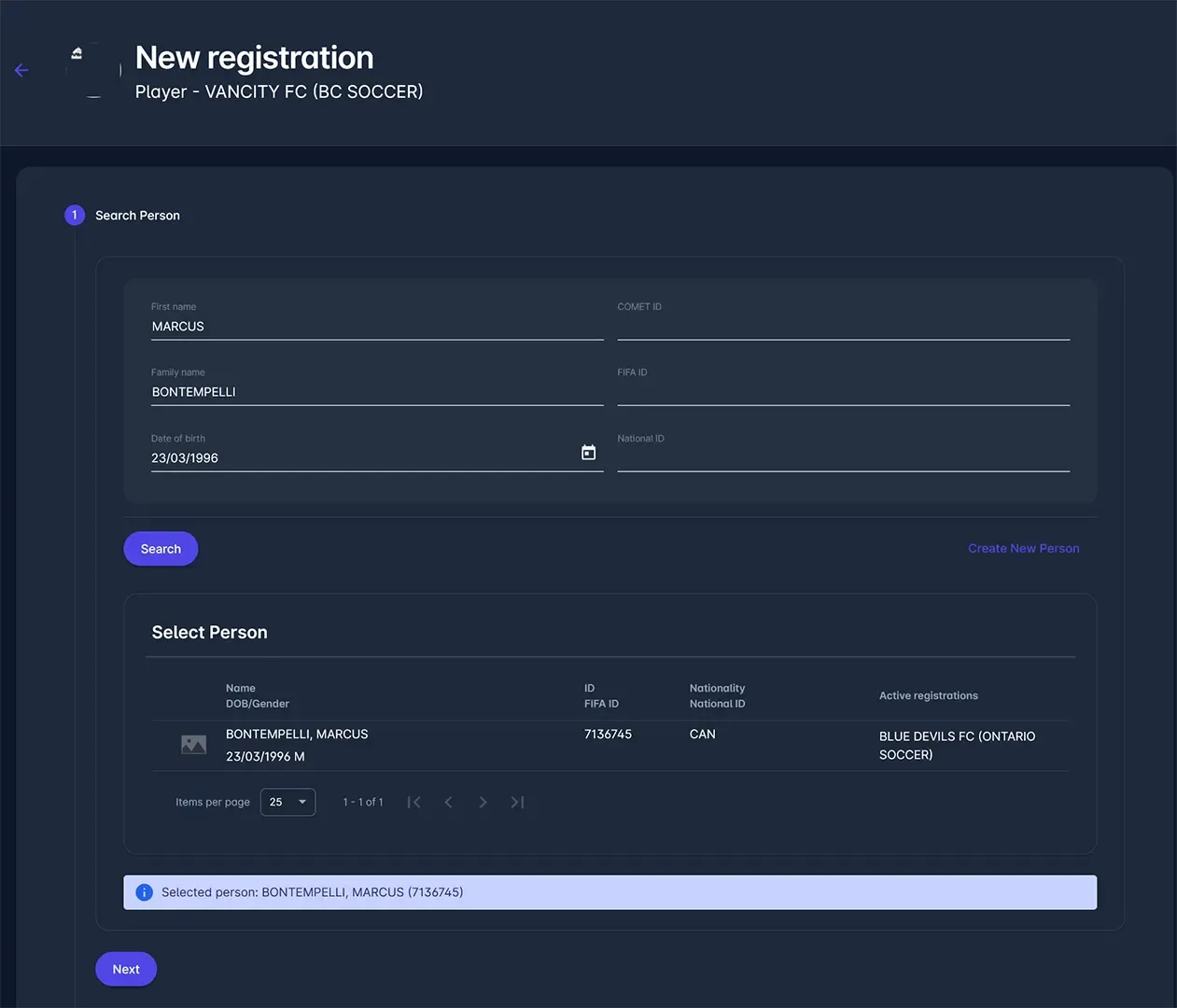
If any of the players in the list are the player you are trying to register, select them and click on Next to move onto the next step. If none of the players who popped up are the one you are trying to register, or there were no search results, click on Create New Person to move onto the next step.
Create a new person in COMET
If a player isn’t in COMET, you’ll be registering them into the system for the first time. Fill out the details of the player in the form.
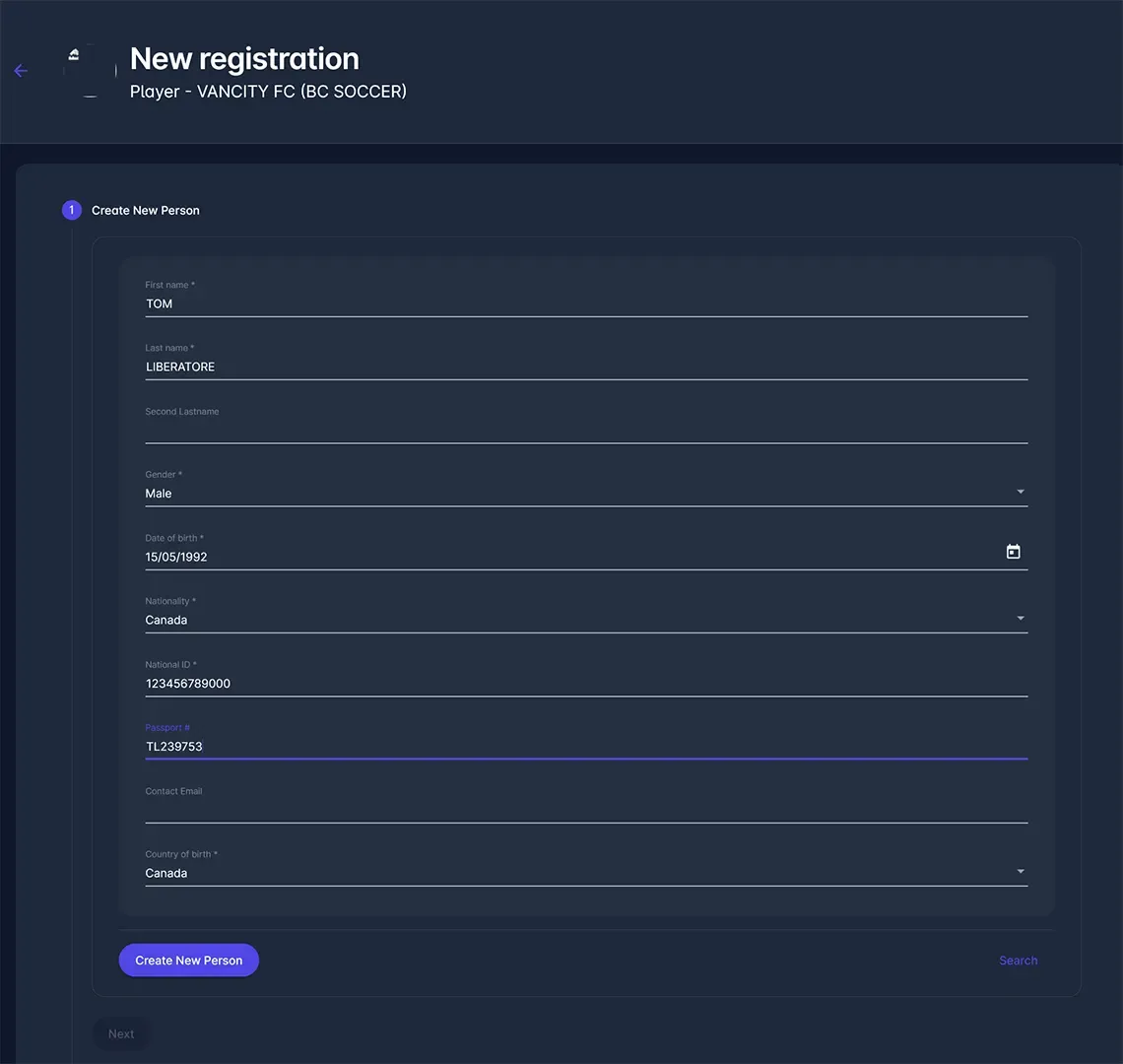
Create registration details for an existing player
If you selected an existing person from COMET, the second step of the registration process is to enter the registration details.
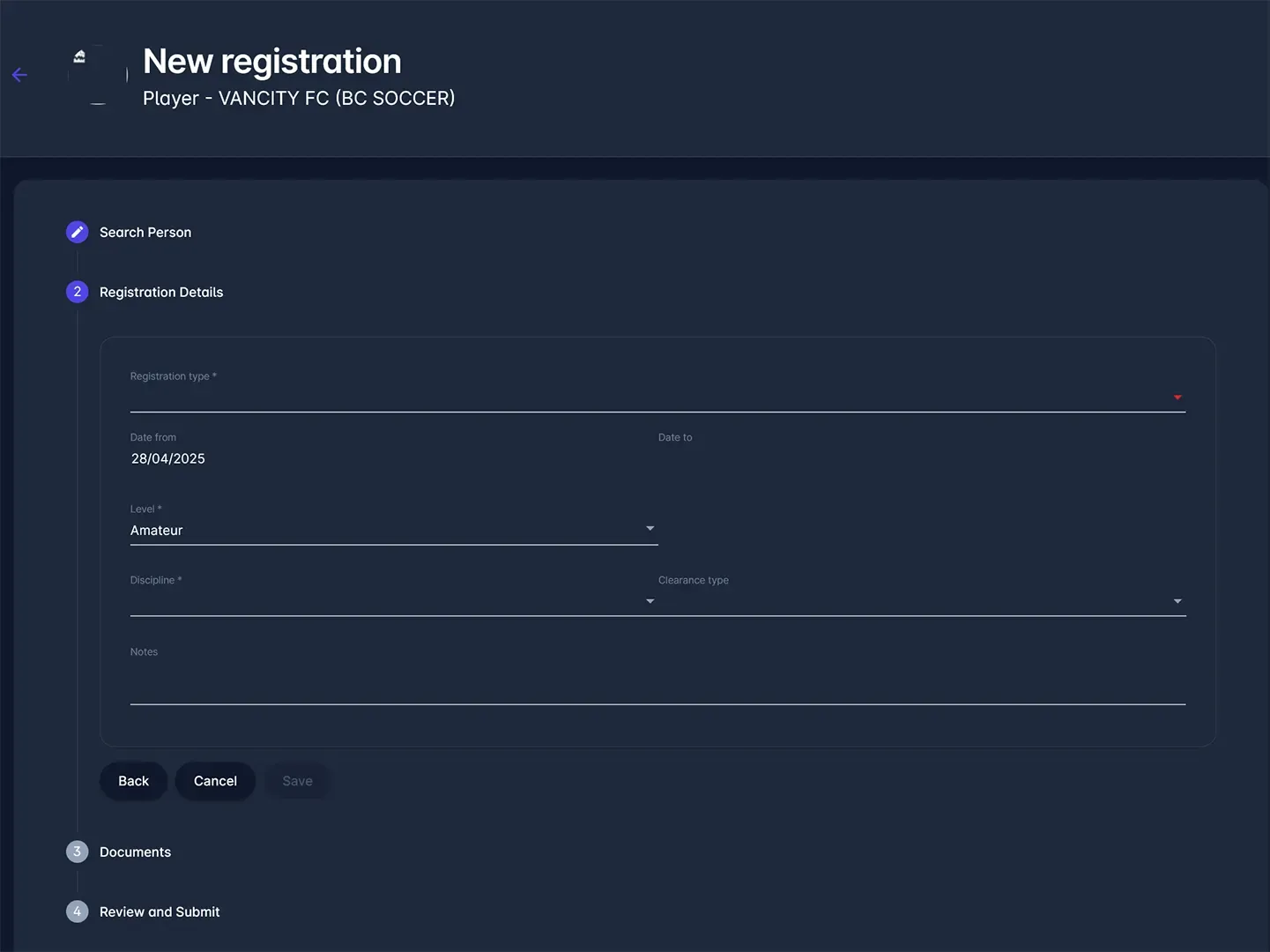
After searching whether a player exists in COMET or not, you can move on to registering the player.
More often than not, you should choose Registration for the registration type. You would select Additional eligibility if a player is being loaned to your club and needs to maintain a registration elsewhere.
The level of the registration should be Amateur for League1 Canada purposes. The discipline should be Football. If the player needs an ITC, the clearance type should be Adult ITC and you should write the previous club and association in the Notes field.
After saving, if a modal pops up about a transfer agreement, indicate No - I want to submit registration without transfer agreement to move onto the next step.
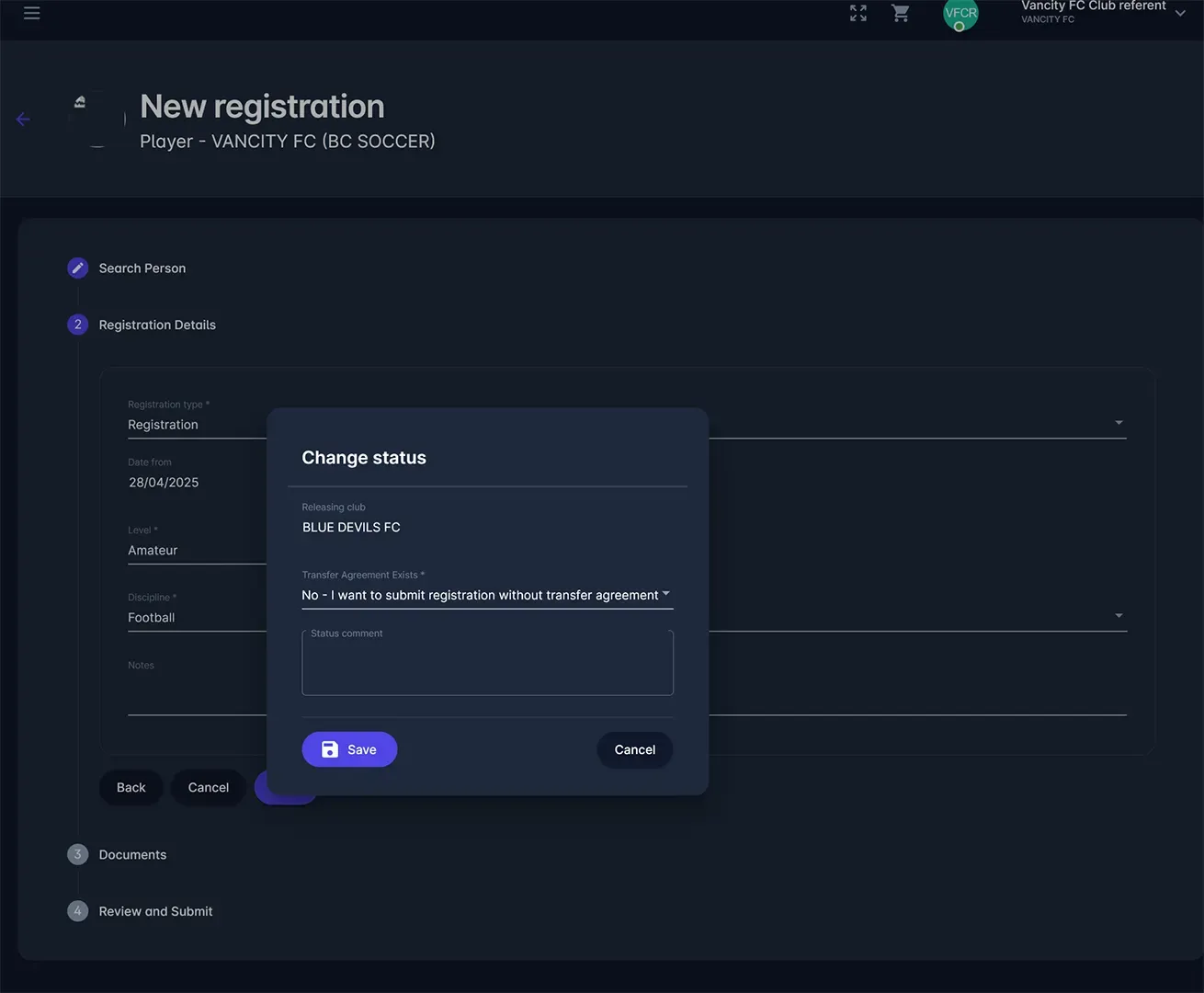
Add a headshot for the player
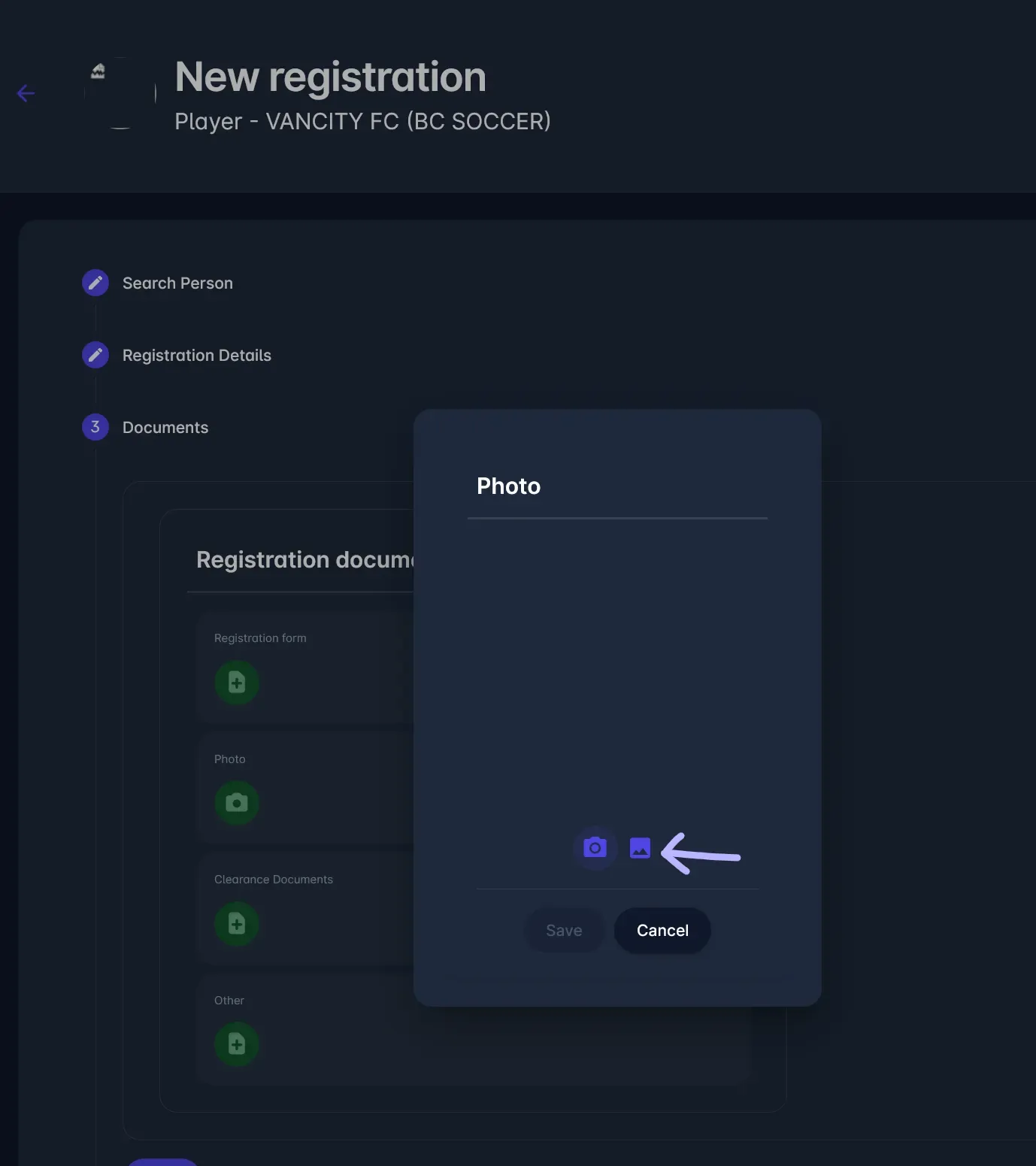
The third step of the registration process will allow you to upload documents for the player. The only relevant one you need to upload is the headshot/photo. Press the green camera icon to upload a photo.
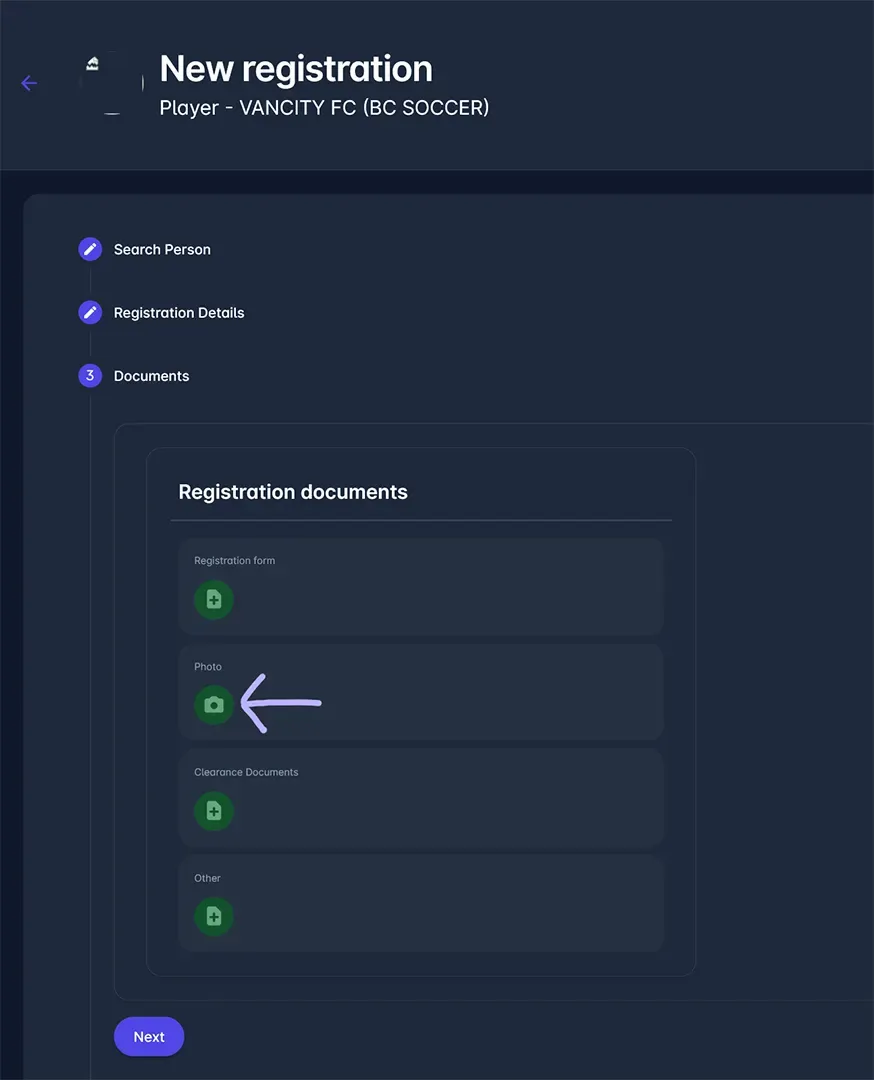
Two icons will show up, a camera and an image. The image icon on the right will allow you to upload a photo from your file system.
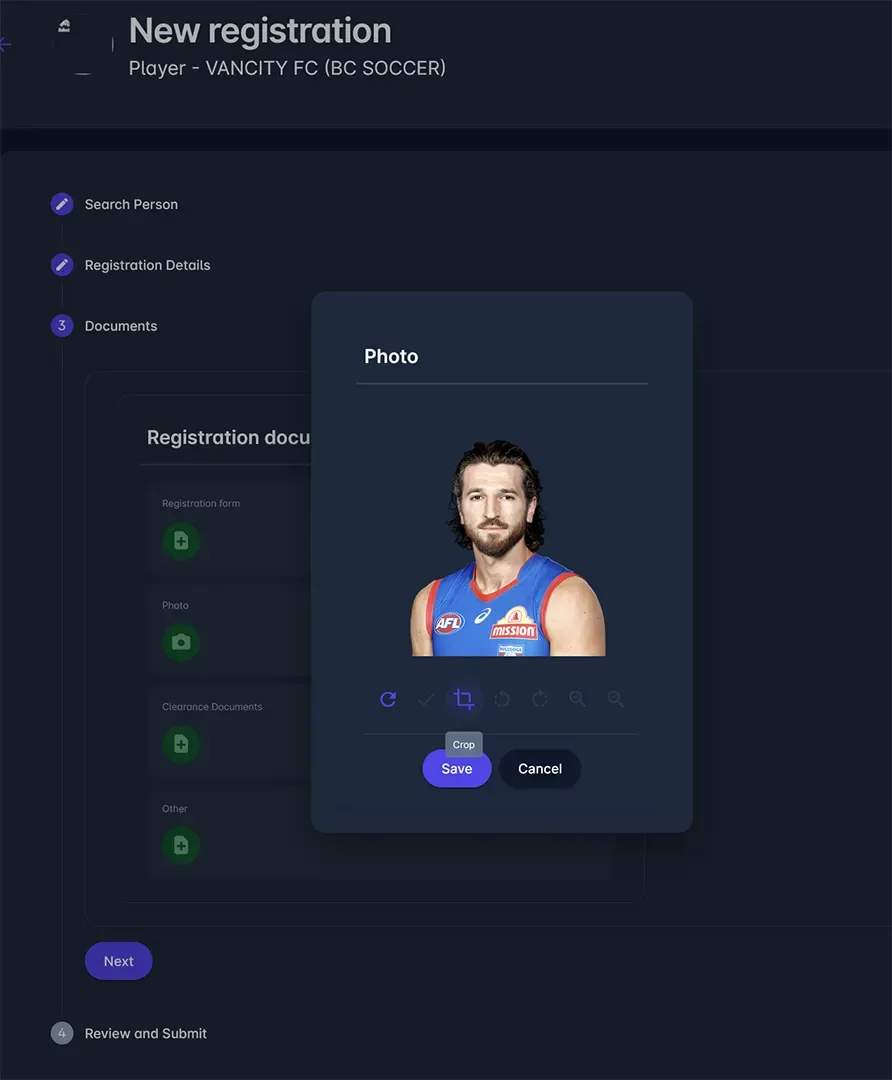
After uploading the photo, you will also have the ability to crop and adjust the photo. When finished, hit Save and then Next to move onto the next step.
Finalize registration details and submit
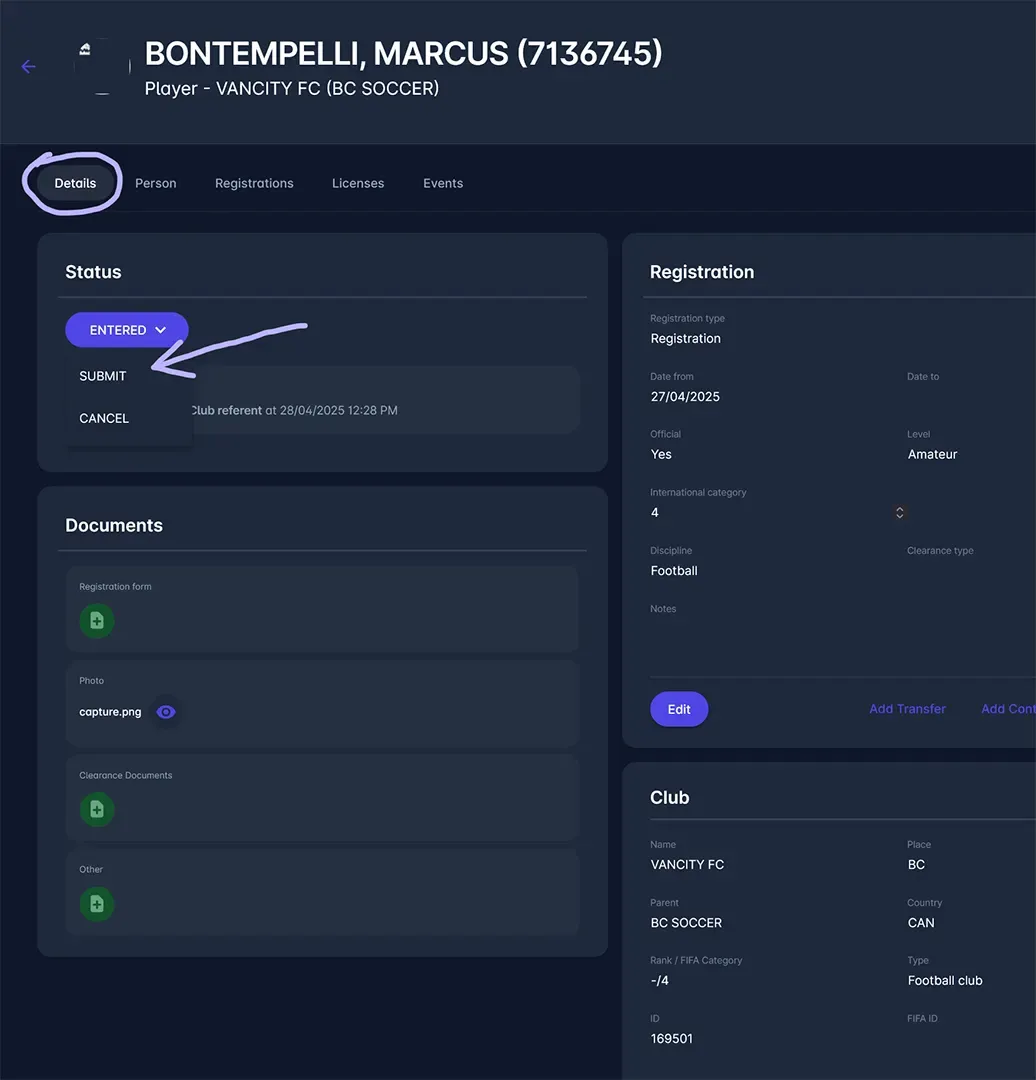
The last step of the registration process is to review the registration and submit it. After your view, press the Submit button and wait for your league’s registrar or administrator to confirm the registration.
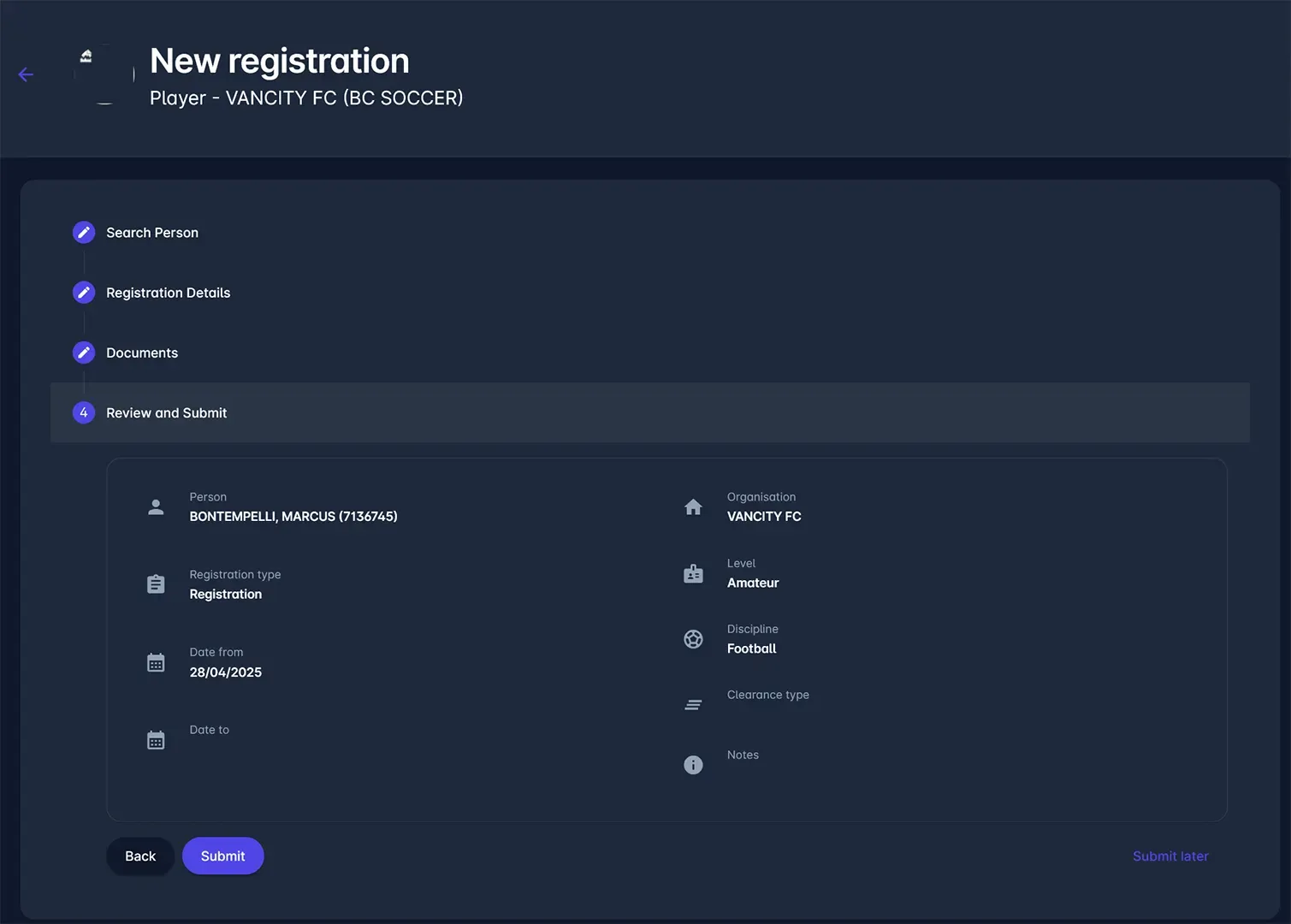
If you receive an error that tells you a “National ID is required” when submitting the registration, please press the Submit later button because you need to edit the person’s details to add a National ID.
Go back to the player list of your club to find the registration that you just entered. Click on the row that contains the player.
Go to the Person tab where you can edit a player’s details, including the National ID. If your provincial or regional association has an ID number (such as the SEOS number in Ontario Soccer), use that as the National ID. Otherwise, please write a unique string of capital letters and numbers.

Once the National ID field is filled, go back to the details tab to submit the registration.
A form will open up where you can enter your player’s information. Any form fields with red labels are mandatory, while the rest are optional.
Before you save, you will also need to fill out the active registrations section at the bottom.
Once you have successfully saved and submitted the player, wait for approval from the league to confirm the registration. After that, you player will be available in your competitions.
The searched player is already in COMET
If the player you searched for is already in the COMET system, you can click on their name to go to their person page. Under active registrations, click on New Registration.
In the new registration page, ensure that the club listed in the form is your club, the discipline is Football, the registration type is Registration and the Date from is the current date. After you are done, click on Save to submit the registration.
If the player already had an existing active registration, this will initiate the transfer process. Wait for approval from the governing body, and then the player should be available for competitions.