Registering team officials
In this guide, we will cover searching for team officials (such as coaches or athletic therapists) within COMET, and registering both existing and new COMET team officials to your club.
Search if a team official is already in COMET
To maintain a clear history of team officials and to prevent duplicates of the same team official, we start by seaching for them.
Finding the search console
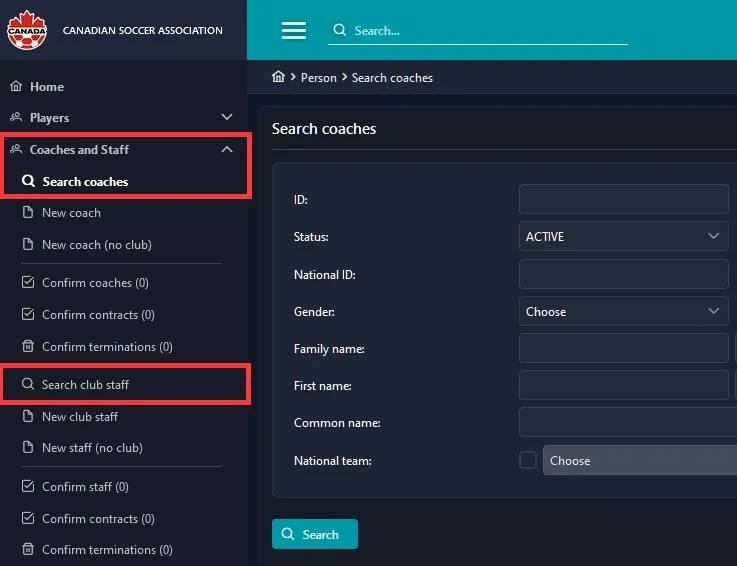
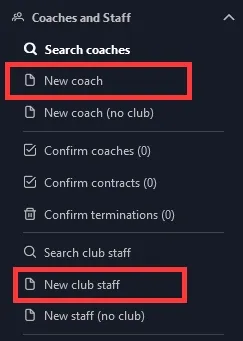
Click on the Coaches and Staff tab in the left sidebar to open a list of options.
Click on Search coaches to open up the console on another page. This would include roles such as Head Coach, Assistant Coach, Goalkeeper Coach, Physical Trainer, and Athletic Trainer.
For other staff roles such as Doctor, Physiotherapist, and Equpiment Manager, click on Search club staff instead.
Using the search form
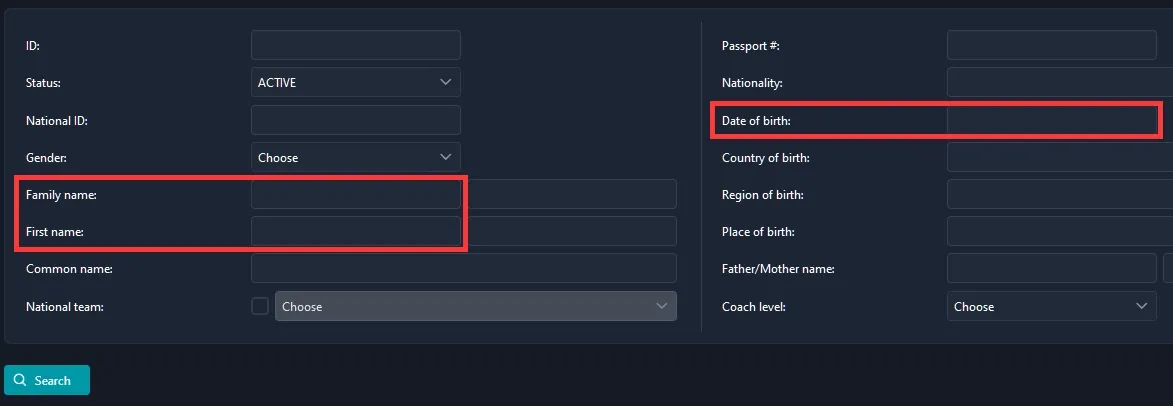
From here, you can use the form to help narrow your search for a coach or staff member. While any of the fields can be used and are optional, I recommend searching by family name, first name, and/or date of birth.
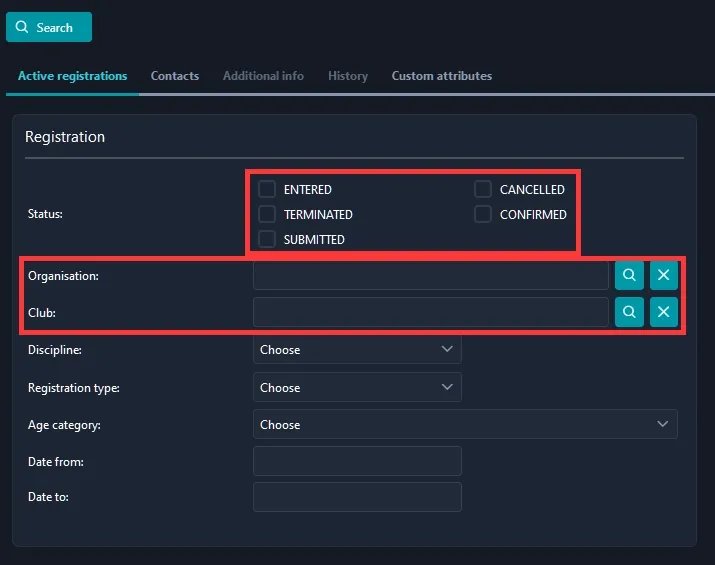
In the active registrations section under the search form, I also suggest clicking the X beside “Organisation” and “Club” to leave those fields because those would limit to your search to only within that governing body or club (for example, you would use that to only search for team officials with registrations in Ontario Soccer).
Make sure to also uncheck any of the status checkboxes (Entered and Confirmed might be checked by default).
Results will pop up if there are any, usually 10 entries per page. You can further narrow your search results by typing in the box above each column.
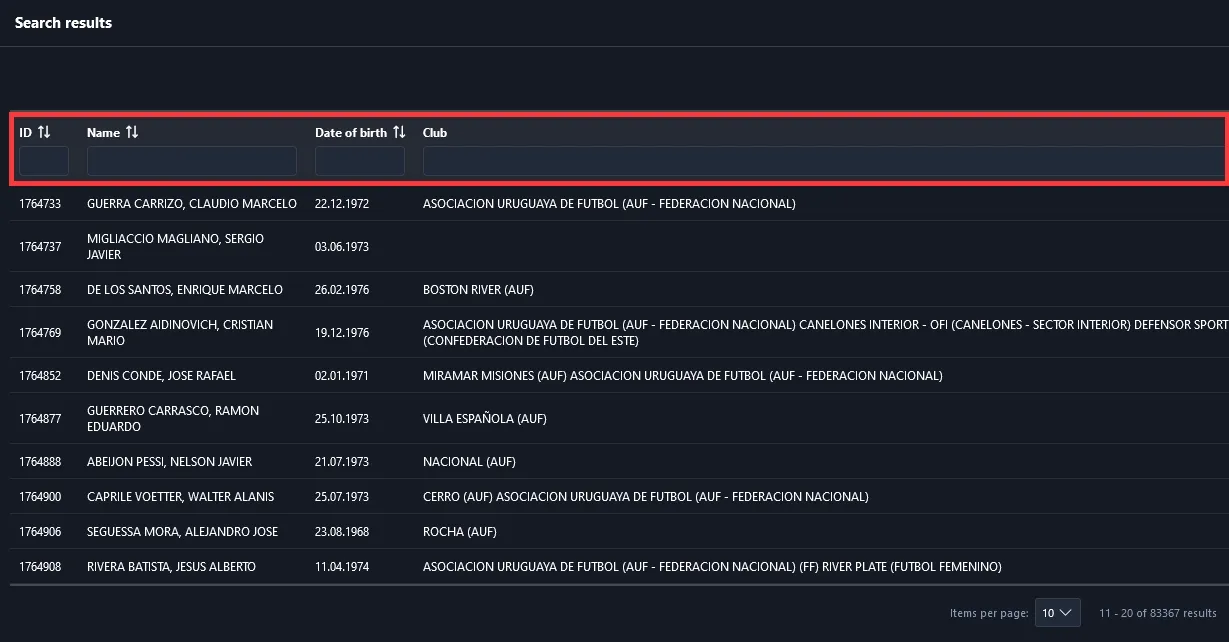
If the coach or staff member you’re looking to register comes up in your search results, click on their name to go to their person page, and skip over to the section on registering existing COMET club officials. Otherwise continue on to register a new official to COMET and your club.
Register an official to your club
After searching whether a team official exists in COMET or not, you can move on to registering them.
The searched club official is not in COMET
If a club official isn’t in COMET, you’ll be registering them into the system for the first time. Under the Coaches and Staff tab, click on New coach or New club staff, depending on who you are registering, in the left sidebar.
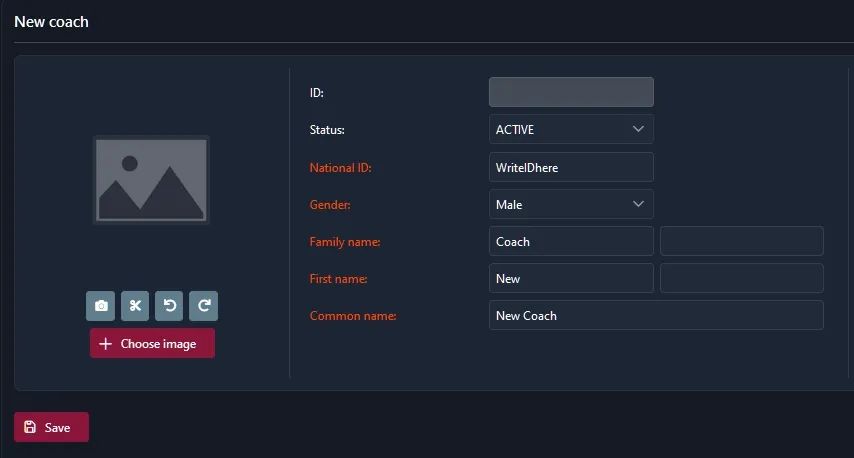
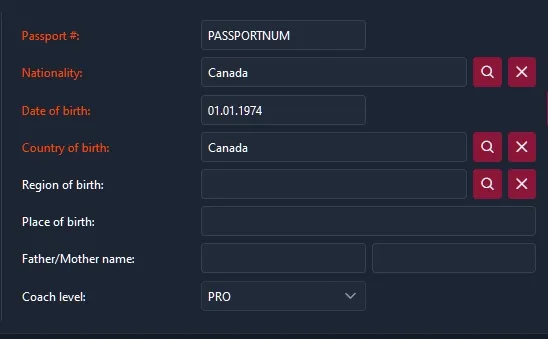
A form will open up where you can enter your club official’s information. Any form fields with red labels are mandatory, while the rest are optional.
Before you save, you will also need to fill out the active registrations section at the bottom.
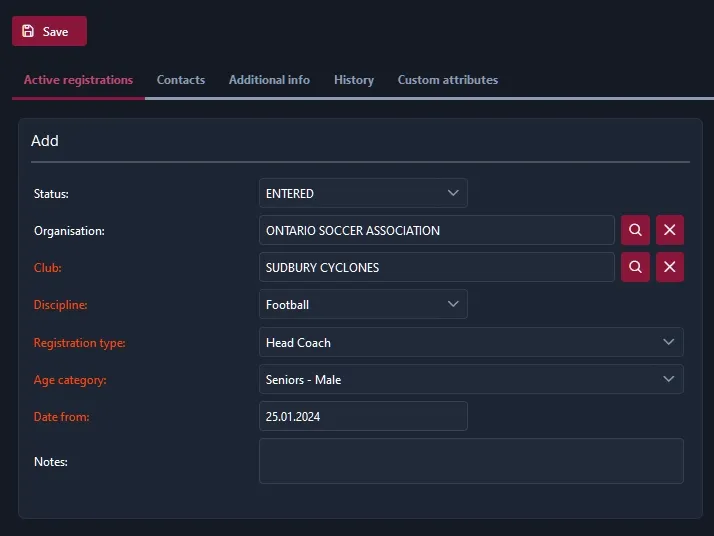
Once you have successfully saved and submitted the club official, wait for approval from the league to confirm the registration. After that, you club official will be available in your competitions.
The searched club official is already in COMET
If the coach or staff member you searched for is already in the COMET system, click on their name to go to their person page. Under active registrations, click on New Registration.

In the new registration page, ensure that the club listed in the form is your club, the discipline is Football, the registration type is the person’s position for the club and the Date from is the current date.
Once you have successfully saved, the status of the registration will be “ENTERED”. You should edit the registration again, press “Save As”, and then select “Save As SUBMITTED”. After submitting, wait for approval from the league to confirm the registration. After that, you team official will be available in your competitions.
Once you have successfully saved, the status of the registration will be “ENTERED”. You should edit the registration again, press “Save As”, and then select “Save As SUBMITTED”. After submitting, wait for approval from the league to confirm the registration. After that, the coach or staff member should be available for competitions.